How to Make AI Videos in 2026: Step-by-Step Guide
Learning how to make AI videos has become easier as modern tools can transform written prompts, images, scripts and existing footage into new video content.
You can use AI video generators to produce product advertisements, YouTube videos, social media clips, cinematic scenes, business presentations, online lessons and faceless videos. Some platforms generate individual shots, while others can assemble a script, visuals, voiceover, music and captions into a complete video.
However, creating a professional AI video still requires planning. A vague prompt can produce distorted faces, unnatural movement, inconsistent products and wasted credits.
In my experience, InVideo AI is one of the easiest options for beginners, while Higgsfield produces my preferred realistic results. Higgsfield followed my prompts well and created impressive advertising-style videos, but its credits can run out quickly.
This step-by-step guide explains how to make AI videos, choose the right generator, write effective prompts, avoid common mistakes and turn short generated clips into a complete video.
Transparency notice: I tested Higgsfield using its free trial and used that experience when forming my opinion. Information about other platforms is based on their official features and documentation. Plans, prices and limits can change, so confirm the latest information before subscribing.
Table of Contents
What Is an AI-Generated Video?
An AI-generated video is footage created or substantially modified using artificial intelligence.
Instead of recording every scene with a camera, you provide the generator with one or more inputs, such as:
- A written prompt
- A complete script
- A photograph
- A product image
- An existing video
- A voice recording
- A character reference
- A website or document
The platform interprets the input and generates new footage or assembles a complete video.
For example, you could enter:
A premium black sports car driving through a modern city at night.
The AI would attempt to create a video matching that description.
A more detailed prompt might say:
A premium black sports car drives slowly through a modern city at night. Rain reflects cobalt-blue lights across the road. The camera follows from a low rear angle using a smooth tracking shot. Cinematic luxury advertisement, realistic movement and dramatic lighting.
The detailed version gives the model more useful instructions about the subject, action, environment, camera and style.
How Do AI Video Generators Work?
AI video generators analyse your instructions and predict what the requested scene should look like over a sequence of frames.
The process generally involves four stages.
1. The generator interprets your prompt
The platform identifies important elements in your instructions, including:
- Main subject
- Intended action
- Environment
- Camera angle
- Camera movement
- Lighting
- Visual style
- Dialogue or sound
2. The generator builds the scene
The model attempts to create the characters, objects and background described in the prompt.
3. The generator creates movement
A video requires visual consistency across multiple frames.
The AI must repeatedly generate the subject while showing movement. This is why faces, hands, clothing and products can sometimes change during a clip.
4. The platform renders the video
The generated frames are combined into a video file. Some platforms can also create dialogue, music, environmental audio and sound effects.
The first result may not be usable. Creating AI videos is normally an iterative process involving generation, review and adjustment.
Runway recommends writing clear prompts that describe what appears in the frame and how those elements move. Runway’s text-to-video prompting guide.
What Types of AI Videos Can You Make?
Different AI tools are suitable for different projects.
Product advertisements
AI video generators can produce dramatic promotional scenes without a physical studio.
Examples include:
- Perfume advertisements
- Clothing promotions
- Food commercials
- Technology advertisements
- Motorcycle promotions
- Skincare videos
- E-commerce product demonstrations
Higgsfield is my preferred option for realistic AI advertisements.
Social media videos
You can generate vertical footage for:
- TikTok
- Instagram Reels
- Facebook Reels
- YouTube Shorts
Short social videos normally benefit from strong opening visuals, clear movement and a simple message.
Faceless YouTube videos
A faceless channel can combine:
- AI-generated scripts
- Stock footage
- Generated video clips
- AI narration
- Background music
- Sound effects
- Captions
InVideo AI is a beginner-friendly choice for producing complete faceless videos from written instructions.
Cinematic footage
Advanced generators can create:
- Science-fiction environments
- Dramatic landscapes
- Action scenes
- Fantasy worlds
- Film-style establishing shots
- Short visual stories
These clips still need to be combined and edited into a complete production.
AI-avatar videos
Platforms such as HeyGen and Synthesia can generate digital presenters who speak a written script.
AI avatars are useful for:
- Employee training
- Online courses
- Product demonstrations
- Sales presentations
- Marketing videos
- Multilingual communication
Educational videos
AI can help transform a script, document or topic into a visual explanation containing narration, illustrations, captions and supporting footage.
What Do You Need Before Making an AI Video?
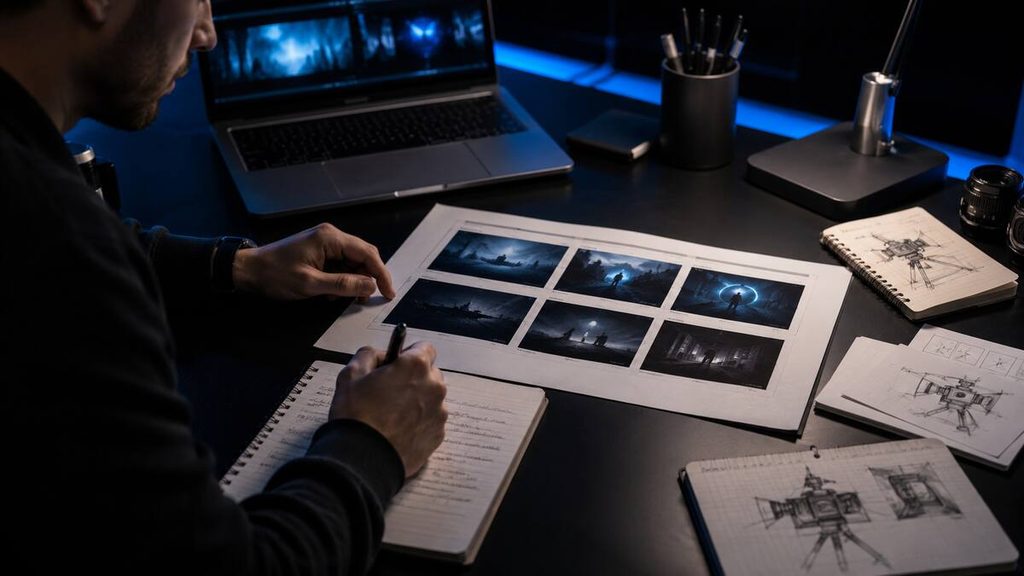
You do not need an expensive camera, but you should prepare the following.
A clear objective
Decide what the video must achieve.
For example:
I want to create a 20-second vertical product advertisement for Instagram Reels. The video should present a fragrance as premium, modern and masculine.
This is more useful than saying, “I want a perfume video.”
A target audience
Identify who should watch the video.
Your target audience affects the:
- Language
- Pacing
- Visual style
- Music
- Video length
- Call to action
- Publishing platform
A script or concept
A single cinematic clip may only require a prompt. A complete video needs a script, outline or shot list.
An AI video generator
Choose a platform based on the intended video.
| Video objective | Recommended option |
|---|---|
| Realistic advertisements | Higgsfield |
| Complete beginner-friendly videos | InVideo AI |
| Professional creative control | Runway |
| Cinematic motion | Kling AI |
| Video with native audio | Google Veo |
| Multi-shot storytelling | Seedance |
| Social media effects | Pika |
| Talking avatars | HeyGen |
| Business training | Synthesia |
Read our guide to the 10 best AI video generators for a more detailed comparison.
Reference images
Reference images are useful when the video must contain a specific:
- Product
- Character
- Person
- Outfit
- Location
- Colour
- Visual composition
Text gives the AI creative freedom. A reference image gives it a clearer visual starting point.
Video-editing software
Generated footage should normally be treated as raw material.
Editing software allows you to:
- Combine scenes
- Remove bad frames
- Add accurate text
- Add your logo
- Insert voiceovers
- Add music
- Balance audio
- Create transitions
- Add subtitles
- Export the correct format
How to Make AI Videos Step by Step
The exact controls depend on the platform, but this workflow applies to most AI video projects.
Step 1: Decide What You Want to Create
Define the video before choosing effects or models.
Answer these questions:
- What is the topic?
- Who is the intended viewer?
- What should the viewer understand?
- What should the viewer do afterwards?
- Where will the video be published?
- How long should it be?
- Does it need narration?
- Does it need a recurring character?
- Does it include a real product?
Example objective:
Create a 15-second vertical advertisement introducing a premium energy drink to young fitness enthusiasts. The video should feel powerful, energetic and modern.
Step 2: Select the Correct Aspect Ratio
Choose the format based on where the video will be published.
| Platform | Recommended aspect ratio |
|---|---|
| YouTube landscape video | 16:9 |
| Website or blog | 16:9 |
| TikTok | 9:16 |
| Instagram Reels | 9:16 |
| YouTube Shorts | 9:16 |
| Instagram feed | 4:5 or 1:1 |
| Facebook landscape video | 16:9 |
Selecting the correct ratio before generating prevents important subjects from being cropped later.
Step 3: Write a Short Script
If your video contains narration or dialogue, write the script before generating visuals.
Keep the language conversational. Read it aloud to estimate the duration.
A short advertisement script could say:
Your next level starts today. Powerful energy, bold flavour and focus when it matters. Take control of every workout.
Avoid creating a long script and then forcing too many words into a short video.
Step 4: Divide the Script Into Scenes
A complete video should be divided into manageable shots.
A 20-second energy-drink advertisement might contain:
- Close-up of the can
- Athlete preparing for a workout
- Athlete drinking the product
- High-energy training scene
- Final product shot and call to action
Generating each scene separately gives you more control.
Higgsfield similarly recommends dividing scripts into scenes, creating a shot list and generating the individual shots before assembling the final video. Higgsfield’s script-to-video guide.
Step 5: Create a Shot List
A shot list explains what must happen in each scene.
Include:
- Scene number
- Subject
- Action
- Location
- Camera angle
- Camera movement
- Lighting
- Duration
- Voiceover
- Sound effects
Example:
| Scene | Visual | Camera | Audio |
|---|---|---|---|
| 1 | Energy-drink can on a wet platform | Slow push-in | Deep impact sound |
| 2 | Athlete preparing in a dark gym | Medium tracking shot | Rising music |
| 3 | Athlete drinking product | Close-up | Can opening |
| 4 | Fast workout sequence | Low-angle movement | Energetic beat |
| 5 | Product hero shot | Static close-up | Final slogan |
Step 6: Choose Between Text-to-Video and Image-to-Video
Use text-to-video when you want the AI to invent the scene.
Use image-to-video when you already have an approved photograph or design.
For a real product, image-to-video is usually safer because the source image establishes the product’s appearance.
Step 7: Write the First Video Prompt
Use a clear structure:
Subject + action + environment + camera + lighting + style
Example:
A premium cobalt-blue energy drink can stands on a wet black platform while water splashes behind it. The camera slowly moves closer from a low angle. Dark sports studio, dramatic blue rim lighting, realistic commercial photography and high-energy advertising style.
This prompt contains one subject, one primary action and one camera movement.
Step 8: Choose Your Model and Settings
Depending on the platform, you may need to select:
- AI model
- Duration
- Aspect ratio
- Resolution
- Camera movement
- Text-to-video or image-to-video
- Number of results
- Audio settings
- Generation quality
Use lower-cost settings while testing when possible. Save higher-quality generations for the final prompt.
Step 9: Generate One Test Clip
Do not immediately create several expensive versions.
Generate one test and check:
- Is the subject correct?
- Does the product remain consistent?
- Is the movement realistic?
- Did the camera follow the prompt?
- Are the colours correct?
- Does the result match the intended platform?
- Are there distorted hands or faces?
- Is the visual style appropriate?
If the result is wrong, adjust the prompt before generating again.
Step 10: Modify One Instruction at a Time
Change one important element per attempt.
You might:
- Simplify the action
- Remove an extra subject
- Change the camera angle
- Reduce the camera movement
- Use a clearer reference image
- Change the lighting
- Make the environment more specific
- Tell the camera to remain still
Changing every part of the prompt makes it difficult to identify what fixed the problem.
Step 11: Generate the Remaining Scenes
Once the first scene works, generate the remaining shots.
Repeat essential character or product details in every prompt.
For example:
A 27-year-old man with short black hair wearing a cobalt-blue sports shirt, black training trousers and white running shoes.
Use the same description in every scene. Changing the wording may cause the AI to create a different person.
Step 12: Download and Organise the Clips
Name your files clearly:
- Scene-01-product-close-up
- Scene-02-athlete-preparing
- Scene-03-drinking-product
- Scene-04-workout
- Scene-05-product-hero
Create separate folders for:
- Generated clips
- Reference images
- Music
- Voiceover
- Sound effects
- Final exports
Step 13: Edit the Video
Import the clips into your video editor and arrange them according to the shot list.
Add:
- Narration
- Music
- Sound effects
- Captions
- Logo
- Product name
- Call to action
- Colour adjustments
- Transitions
Do not depend on an AI generator to reproduce important written text correctly. Add exact product names, prices, disclaimers and calls to action during editing.
Step 14: Review the Complete Video
Watch the entire export carefully.
Look for:
- Changing faces
- Distorted hands
- Inconsistent products
- Strange background movement
- Incorrect text
- Sudden colour changes
- Unnatural actions
- Audio problems
- Unlicensed material
- Misleading claims
Watch it on both a computer and a mobile phone before publishing.
How to Write Effective AI Video Prompts
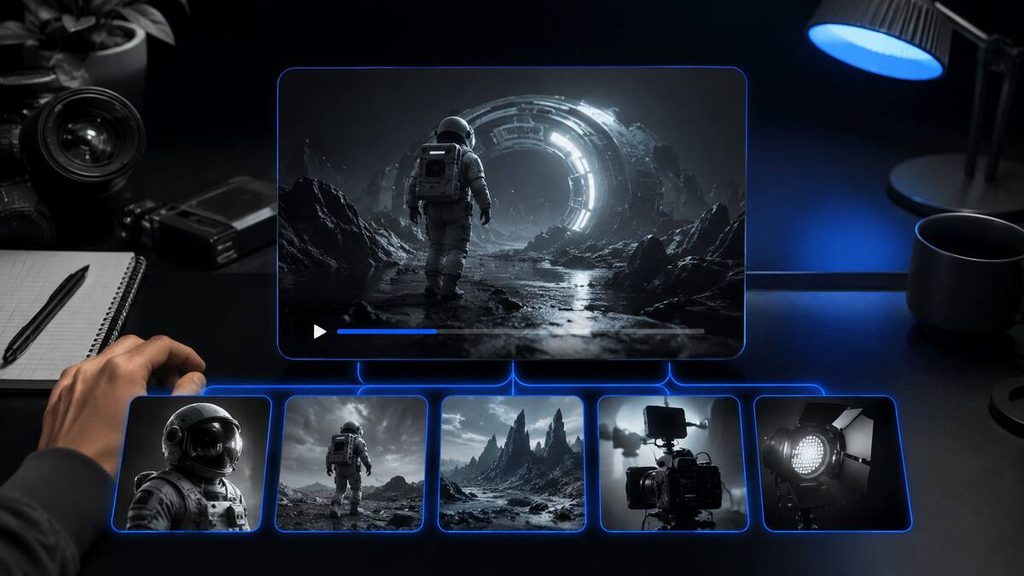
Understanding prompts is essential when learning how to make AI videos.
Google DeepMind recommends describing the scene, action, characters and dialogue in detail when prompting its Veo video model. Google Veo prompt guide.
A practical AI video prompt can contain seven elements.
1. Subject
Identify the main focus.
Examples:
- A premium perfume bottle
- A young entrepreneur
- A black motorcycle
- A white running shoe
- A cup of coffee
- A modern house
2. Action
Explain what happens.
Examples:
- Rotates slowly
- Walks toward the camera
- Drives through rain
- Opens a laptop
- Floats above a platform
- Pours into a glass
A video prompt must describe movement, not only appearance.
3. Environment
Describe the location.
Examples:
- Premium black photography studio
- Modern Johannesburg skyline
- Futuristic city at night
- Quiet office at sunrise
- Luxury hotel lobby
- Mountain road covered in mist
4. Camera shot
Specify the framing.
Examples:
- Extreme close-up
- Close-up
- Medium shot
- Wide shot
- Low-angle shot
- Overhead shot
- Over-the-shoulder shot
5. Camera movement
Choose one primary movement.
Examples:
- Slow zoom in
- Smooth tracking shot
- Slow orbit around the product
- Gentle movement upward
- Camera remains completely still
- Drone shot moving forward
- Controlled handheld movement
Avoid combining a pan, zoom, orbit and drone movement in one short scene.
6. Lighting
Lighting controls the mood.
Examples:
- Soft morning sunlight
- Dramatic studio lighting
- Cobalt-blue rim lighting
- Warm golden-hour light
- Natural window light
- Neon reflections
- Bright commercial lighting
7. Visual style
Describe the intended presentation.
Examples:
- Luxury advertisement
- Cinematic film
- Realistic documentary
- Premium fashion commercial
- Corporate training video
- High-energy sports advertisement
- Clean social media content
Reusable AI Video Prompt Formula
Use this formula:
[Shot type] of [subject] [performing action] in [environment]. [Camera movement]. [Lighting]. [Visual style]. [Important constraints].
Example:
Close-up of a premium black wristwatch rotating slowly above a polished stone platform in a dark studio. The camera performs a smooth circular movement around the watch. Cobalt-blue rim lighting, realistic luxury advertisement, detailed reflections, stable product shape and no written text.
AI Video Prompt Examples
Product-advertisement prompt
Close-up of a premium blue perfume bottle standing on a polished black platform. Soft mist moves around its base while the camera slowly orbits the product. Dark luxury studio, cobalt-blue side lighting, realistic commercial style, sharp reflections, consistent bottle shape and no written text.
Social media prompt
Vertical video of a white sneaker floating above a black platform while blue particles circle around it. The sneaker rotates slowly as the camera moves closer. Bright studio lighting, high-energy social media advertisement, clean background and sharp product details.
Cinematic landscape prompt
Wide cinematic shot of a lone traveller standing above a futuristic city at sunrise. Clouds move slowly through the valley while the camera rises behind the traveller. Soft golden lighting, realistic atmosphere and epic science-fiction film style.
Business-video prompt
Medium shot of a confident young entrepreneur working on a laptop in a modern office. The camera moves slowly from left to right. Natural window lighting, realistic corporate style and calm, productive atmosphere.
Food-advertisement prompt
Extreme close-up of hot coffee pouring into a white ceramic cup. Steam rises naturally as warm morning sunlight enters through a nearby window. Slow-motion commercial style, shallow depth of field and realistic liquid movement.
Static-camera prompt
A cobalt-blue energy drink can stands on a wet black platform while mist moves gently behind it. The camera remains completely still. Dramatic sports-studio lighting, realistic product advertisement and consistent product shape.
How to Turn a Script Into a Complete AI Video
Use this process for a longer video:
- Write and finalise the script.
- Read it aloud to estimate its duration.
- Divide it into individual scenes.
- Create a shot list.
- Generate one short clip per shot.
- Record or generate the narration.
- Select background music and sound effects.
- Assemble the clips in an editor.
- Add captions, branding and calls to action.
- Review and export the complete video.
Short scenes are easier to control than one complicated prompt asking the AI to create an entire film.
Text-to-Video vs Image-to-Video
| Feature | Text-to-video | Image-to-video |
|---|---|---|
| Input | Written description | Image and motion instructions |
| Creative freedom | Higher | More controlled |
| Product consistency | More difficult | Usually better |
| Character consistency | More difficult | Better with a reference |
| Initial composition | Created by AI | Established by the image |
| Best for | New concepts and environments | Products, characters and photographs |
Text-to-video is useful when you want the model to invent a scene.
Image-to-video is usually better when appearance matters. Use an approved product photograph or consistent character image, then describe how it should move.
Best AI Video Generators for Beginners
InVideo AI
InVideo AI is my beginner recommendation because it can help create a complete video instead of only producing a short cinematic clip.
It can assist with:
- Scripts
- Stock footage
- Generated scenes
- AI voiceovers
- Music
- Captions
- Complete drafts
Higgsfield
Higgsfield is my preferred choice for realistic videos and advertisements.
I found that it followed my prompts well and produced impressive visuals. However, credits can disappear quickly, and the subscription may be expensive for someone who is still learning.
I recommend practising first and paying for Higgsfield when you understand video prompting.
Runway
Runway is suitable for users who want generation and professional creative controls in one workflow.
Pika
Pika is useful for beginners experimenting with short social-media effects and image transformations.
HeyGen
HeyGen is suitable for presenter-led marketing, training and business videos.
Common AI Video Mistakes
Using vague prompts
“Make a cool advertisement” does not provide enough direction.
Describe the subject, action, environment, camera, lighting and style.
Requesting too much action
Several people running, talking and interacting with different objects can confuse the model.
Divide complicated actions into separate shots.
Using multiple camera movements
Choose one clear movement for a short clip.
Generating the complete project at once
Break the project into scenes and edit them together.
Expecting perfect text
Add accurate written information during editing.
Choosing the wrong aspect ratio
Select the publishing platform before generating.
Paying before learning
Beginners can waste expensive credits while experimenting with basic prompts.
Ignoring failed frames
Do not publish a clip containing distorted faces, hands or products just because the rest of the scene looks impressive.
How to Avoid Wasting AI Video Credits
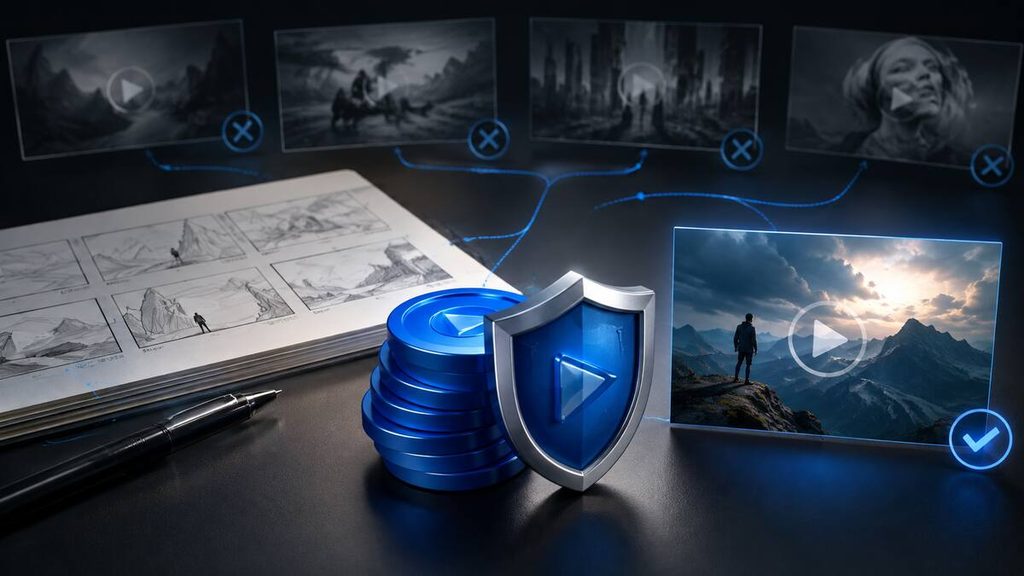
Credits were my main frustration with Higgsfield.
Use these strategies:
- Plan the video before generating
- Write the shot list first
- Use reference images
- Test one scene at a time
- Keep actions simple
- Choose one camera movement
- Generate short clips
- Test at a lower quality when possible
- Save successful prompt structures
- Change one instruction per attempt
- Stop when the concept is unclear
- Track attempts per usable clip
The true cost is not the subscription price alone. It is the amount you spend to produce a clip that is good enough to publish.
Can AI Videos Be Used Commercially?
Commercial usage depends on the platform, model, subscription and source material.
Before publishing commercial content, verify:
- Commercial-use rights
- Ownership of uploaded images
- Voice permissions
- Music licences
- Model or actor consent
- Brand and logo rights
- Platform-specific restrictions
- Advertising disclosure requirements
Never upload someone else’s photograph, voice, video or intellectual property without permission.
Do not use AI video to impersonate people, deceive viewers or misrepresent real events.
This article provides general information and is not legal advice.
Can AI Videos Be Monetised on YouTube?
AI-assisted videos may qualify for monetisation when they comply with YouTube’s current policies and provide meaningful original value.
A stronger AI-assisted video may include:
- Original research
- Original script
- Human commentary
- Useful narration
- Custom editing
- Clear storytelling
- Educational value
- Personal analysis
Publishing repetitive, automatically generated videos with little added value may create monetisation problems.
Review YouTube’s current policies before building a channel around AI-generated content.
Frequently Asked Questions
How do I make an AI video?
Choose a video generator, define your objective, write a script or prompt, divide the project into scenes, generate each shot and combine the results in a video editor.
What is the easiest AI video generator?
InVideo AI is one of the easiest options for beginners because it can assemble scripts, footage, narration, music and captions into a complete video.
What is the best AI video generator for realistic videos?
Higgsfield produced my preferred realistic results. It followed my prompts well and was especially impressive for advertisements.
Can I make AI videos for free?
Yes. Several platforms provide free plans, trials or limited credits. Free access normally restricts models, resolution, generation quantity, speed or downloads.
Can ChatGPT make AI videos?
ChatGPT can help write scripts, shot lists and prompts. Available video-generation capabilities depend on your ChatGPT plan, region and the tools available in your account.
How long does it take to make an AI video?
Generation time depends on the platform, model, resolution, duration and server demand. Creating a complete video also includes planning, regeneration and editing.
Why do AI-generated videos look strange?
Common causes include unclear prompts, complex movement, too many subjects, weak reference images and difficulty maintaining consistency between frames.
Can an AI video generator create sound?
Some models can generate dialogue, ambience, music and sound effects. Every audio track should still be reviewed before publication.
Do I need editing experience?
Basic editing skills are useful. Generated clips normally need to be trimmed, arranged and combined with accurate text, narration and audio.
Should beginners pay for an AI video generator?
Beginners should start with free access. Purchase a subscription after you understand prompting and know which type of content you plan to produce.
Final Verdict
Learning how to make AI videos is not only about finding a generator and pressing a button.
Professional results require:
- A clear objective
- A defined audience
- A script or concept
- A shot list
- Well-structured prompts
- Appropriate reference images
- Careful generation
- Human editing
- Final quality control
InVideo AI is my recommendation for beginners who want a simpler complete-video workflow. Higgsfield is my preferred option for realistic visual quality and advertising, but I recommend paying for it only after learning how to prompt effectively.
Start with a short project, use free access and save the prompts that produce strong results. Once you can consistently generate usable clips, consider investing in a paid plan.
AI can accelerate video production, but human planning and creative direction still determine whether the final video is useful, trustworthy and worth watching.
Affiliate Disclosure
This article does not currently contain affiliate links. Product links lead to official websites, and Tool Habour does not presently earn a commission when readers use them.
If affiliate links are added later, this disclosure will be updated clearly. A future commission will not increase the price paid by the reader.